How to Place Quotation
Step 1 - Login Your Account
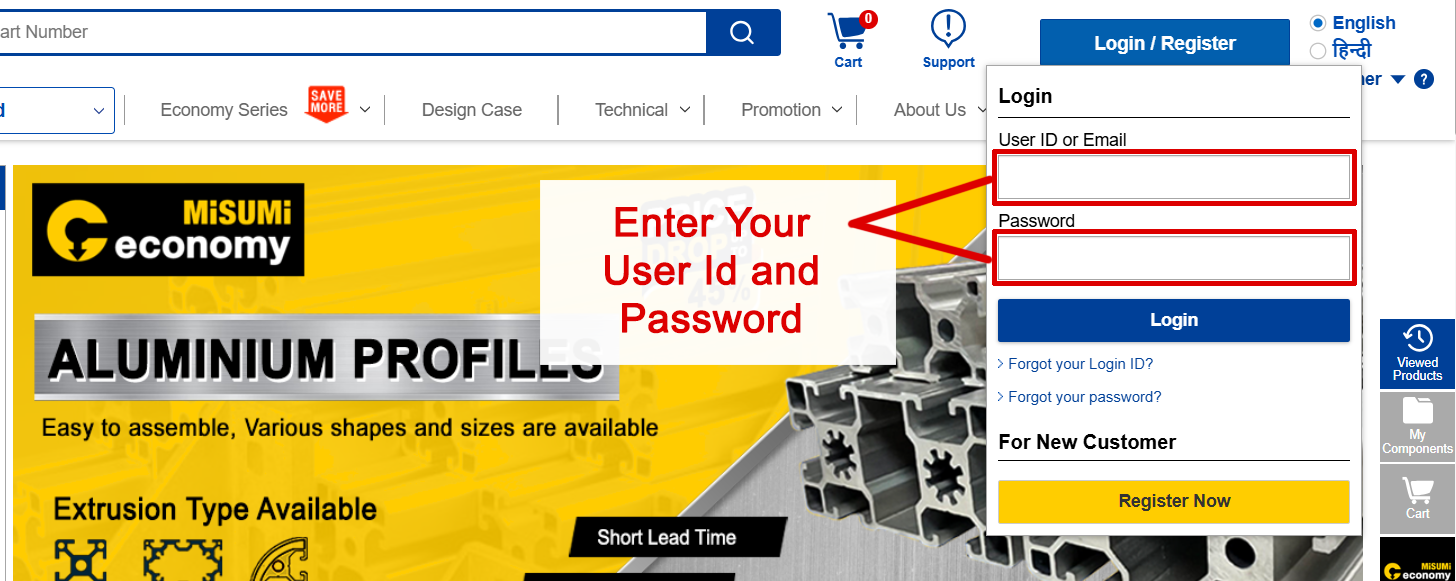
Login and Register for new Customer
- 1 Enter your Username.
- 2 Type your Password.
- 3 Click Login to access Quote and Order.

Step 2 - Click “Quote/Order” to proceed to the Quotation page

Step 3 - Quotation and Order Entry
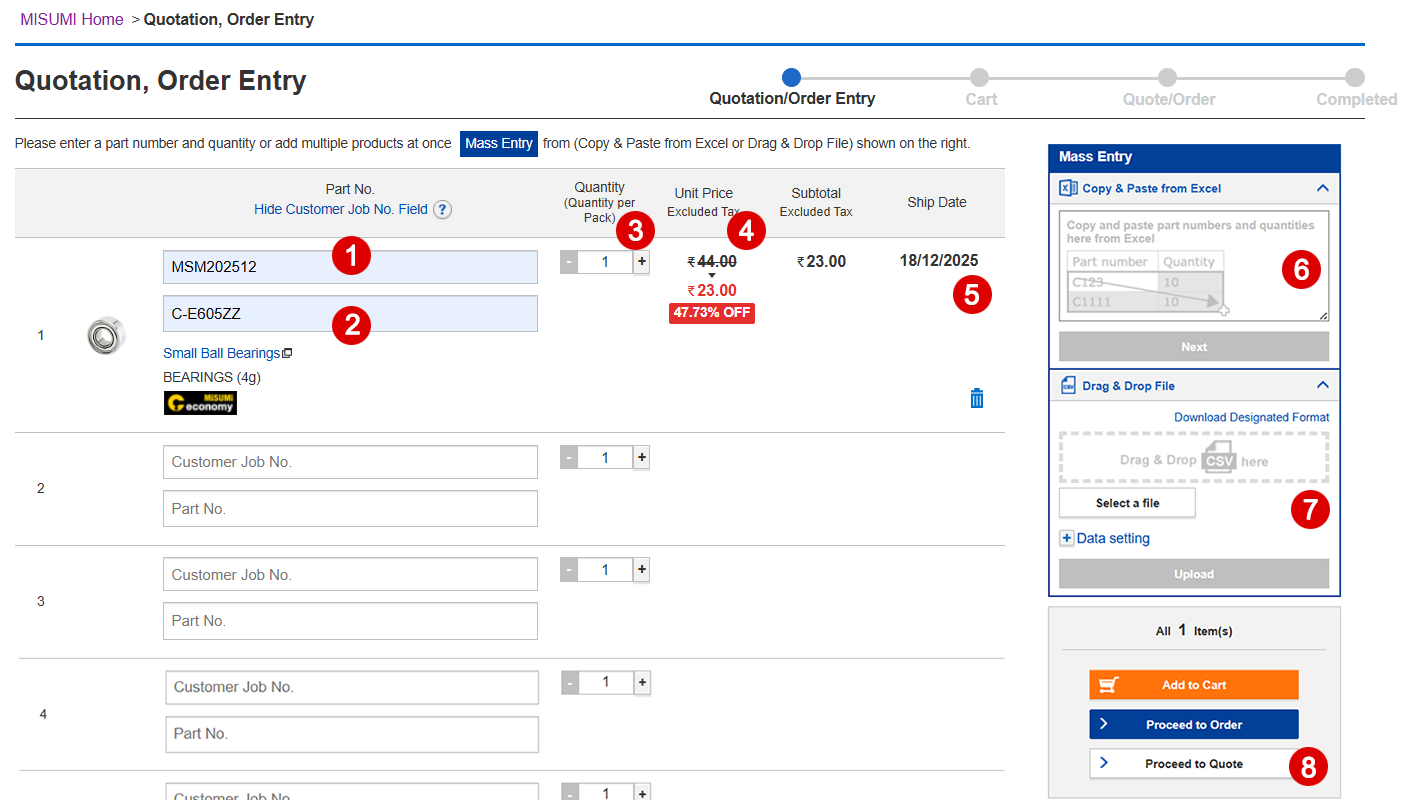
Process to Fill the Quotation Form
- 1 Enter the Customer Job Number / Reference Number.
- 2 Enter the Product Part Code.
- 3 Select the required quantity.
- 4 Verify the unit price (GST excluded).
- 5 Check the product shipping date.
- 6 Use the mass entry option to add multiple products at once.
Example format:Part Number Quantity C-E605ZZ 2 C-E6000ZZ 5 C-E6002 3 - 7 Alternatively, drag and drop a CSV file to upload product details. Click to download the CSV format.
- 8 Click “Proceed to Quote” to complete the process.
Step 4 - Confirm Quotation
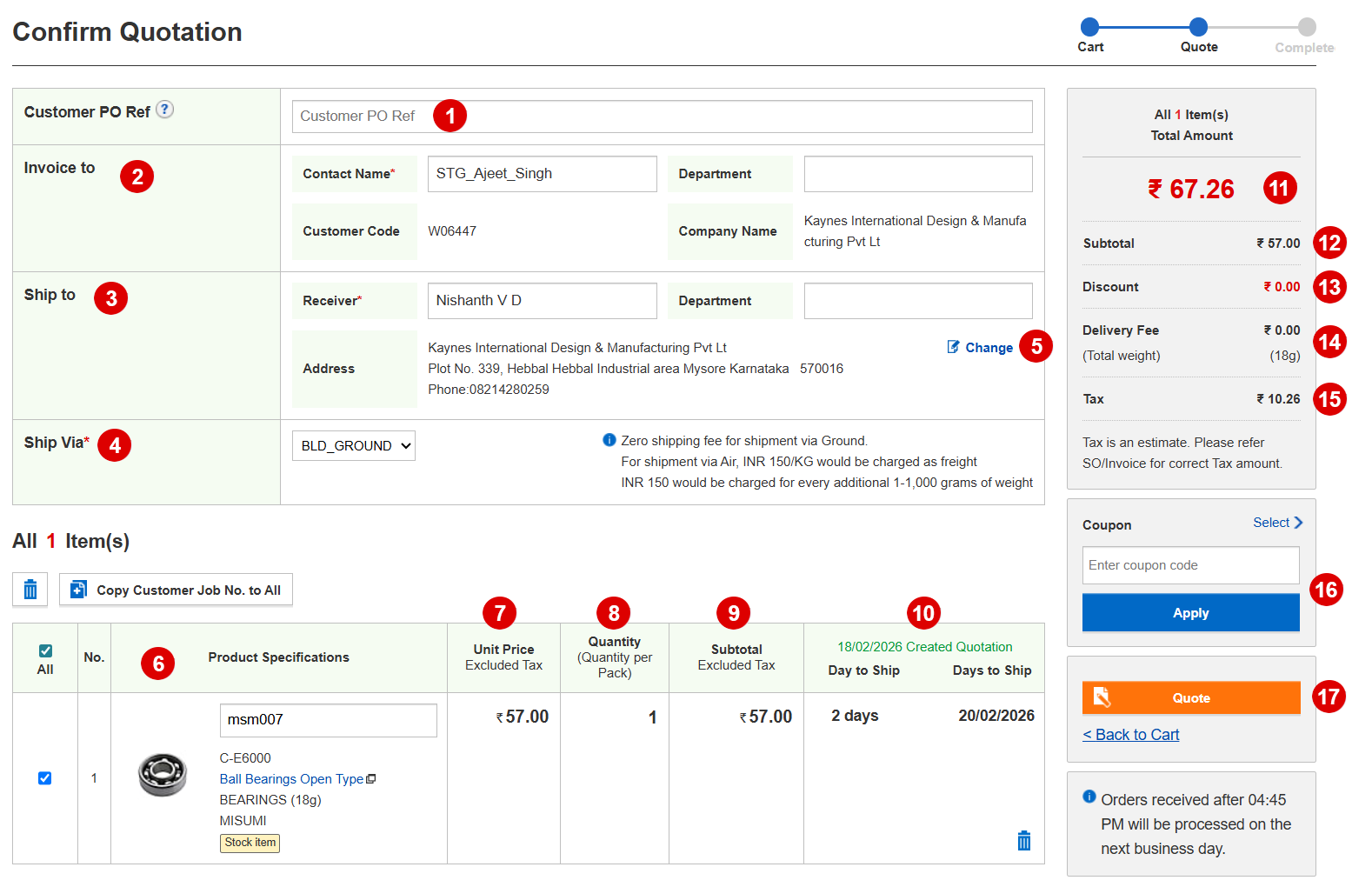
Process to Confirm Quotation
- 1 Enter the Customer PO or Reference Number.
- 2 Provide the name of the Contact Person.
- 3 Enter the Receiver’s Name.
- 4 Select the preferred Shipping Method.
- 5 Update or confirm the Delivery Address.
- 6 Review the Product Specifications carefully.
- 7 Verify the Unit Price.
- 8 Confirm the Order Quantity.
- 9 Check the Subtotal Amount.
- 10 Review the Shipping Dates.
- 11 Confirm the Total Amount.
- 12 Re-check the Subtotal for accuracy.
- 13 Verify any applicable Discounts.
- 14 Confirm the Delivery Charges.
- 15 Review the Tax Details.
- 16 Apply a Coupon Code, if available.
- 17 Click “Quote” to submit for Quotation Approval.
Step 5 - Quotation Completed
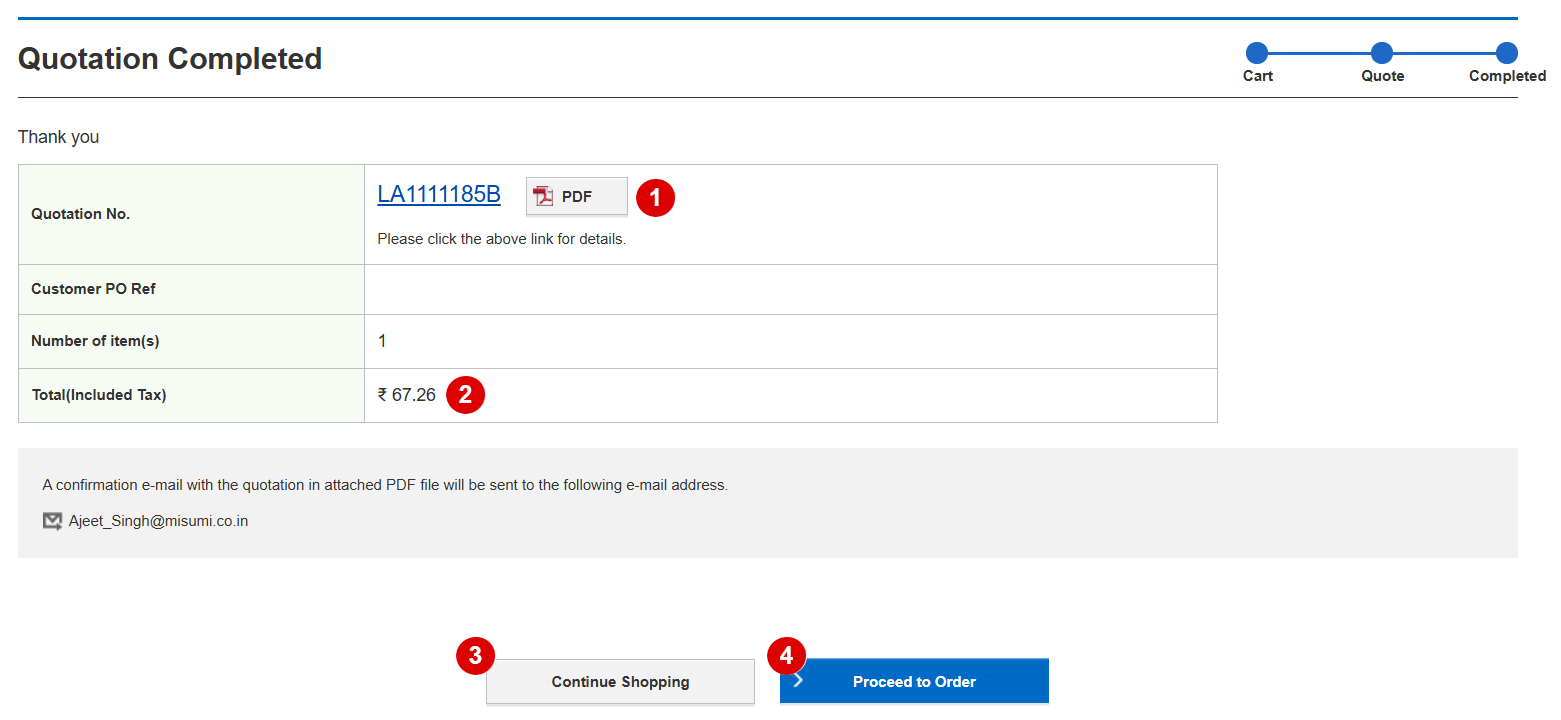
Next Steps After Quotation Confirmation
- 1 Click on PDF to review the Quotation document.
- 2 Verify the Final Price carefully.
- 3 If you want to add more items, click Continue Shopping.
- 4 If the Quotation is finalized, click Proceed to Order to complete the process.