How to Check Quotation History
Step 1 - Login Your Account
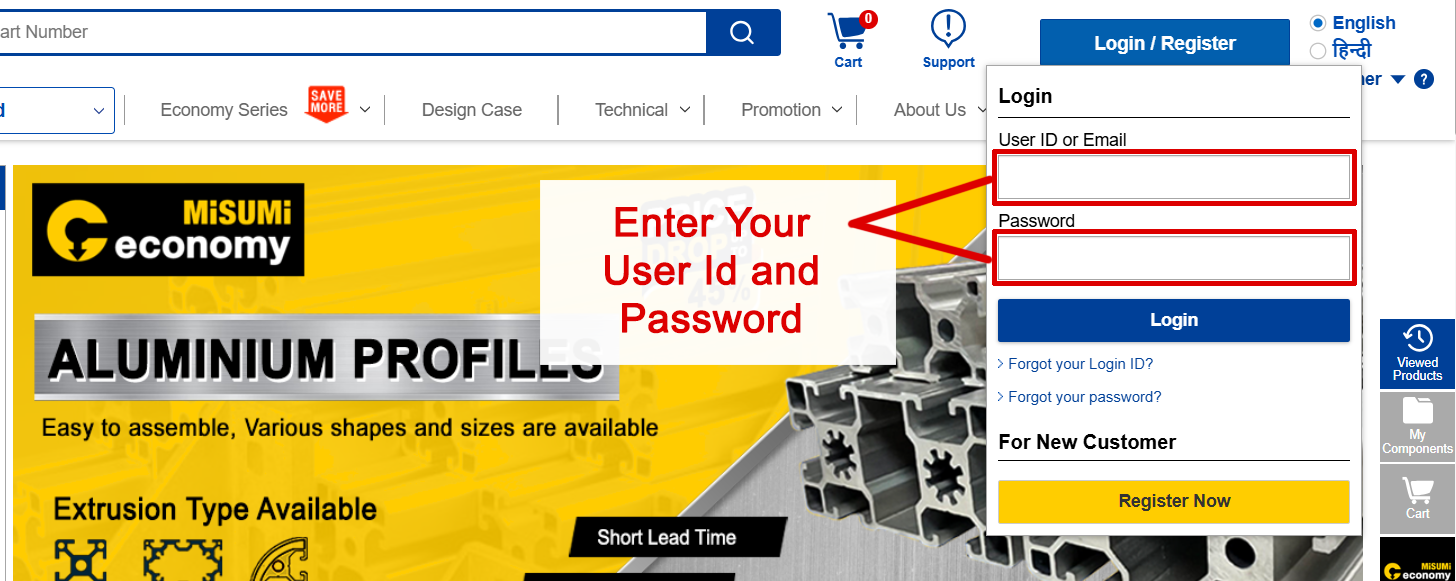
Login and Register for new Customer
- 1 Enter your Username.
- 2 Type your Password.

Step 2 - Click on Order History

- Select Order History to access all your past and present Quotation.
Step 3 - Click on Quotation History Tab

Step 4 - Quotation History
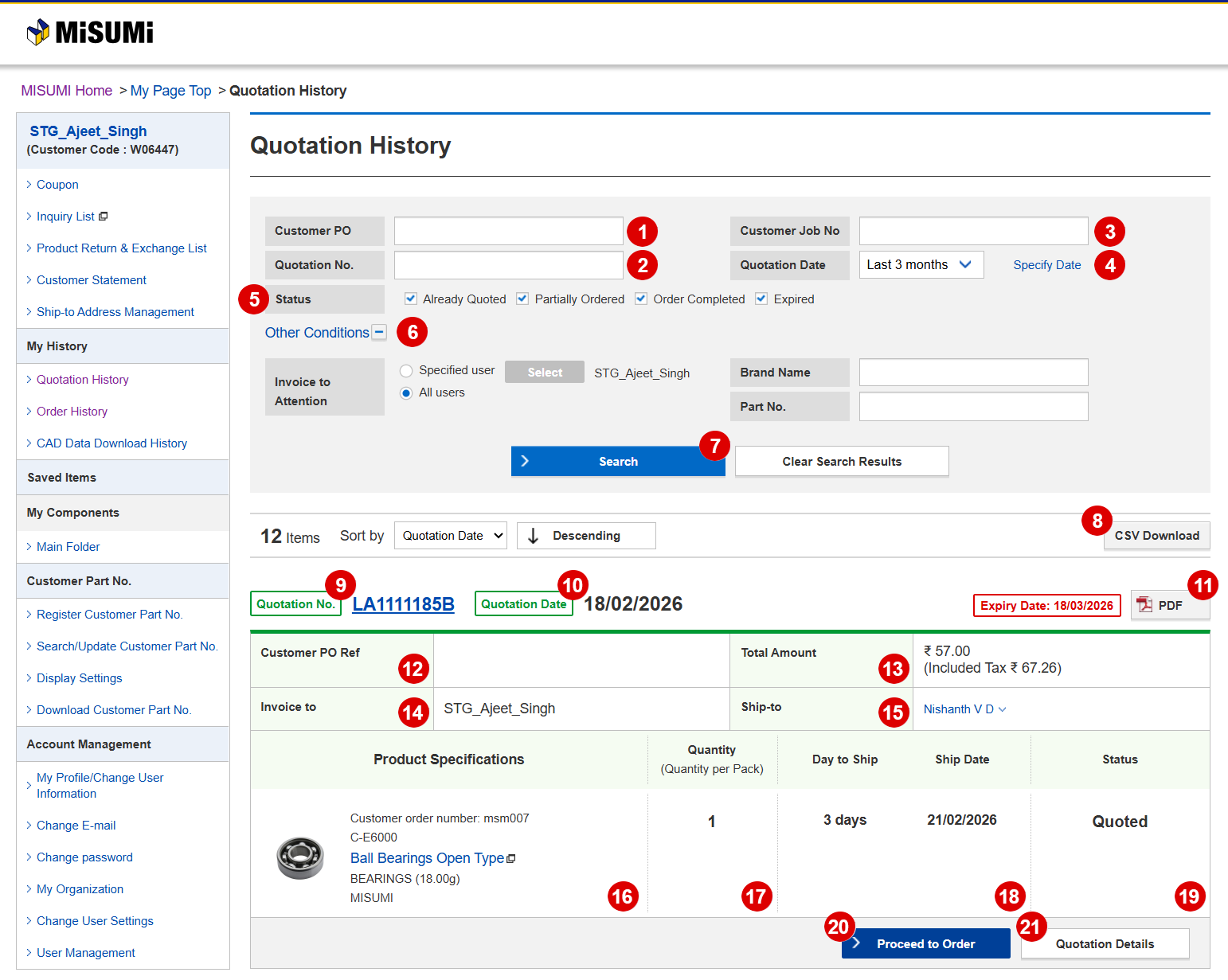
How to Find Quotation History
- 1 Enter the Customer PO or Reference Number.
- 2 Provide the Quotation Number.
- 3 Enter the Job Number, if applicable.
- 4 Select the Quotation Date.
- 5 Choose one or multiple Status options.
- 6 Use Other Conditions for a more refined search.
- 7 Click Search to view your Quotation History.
- 8 To download the complete history, click CSV Download.
- 9 Check the Quotation Number.
- 10 Verify the Quotation Date and Time.
- 11 Download a single quotation in PDF Format, if required.
- 12 Review the PO Reference.
- 13 Confirm the Total Amount of the quotation..
- 14 Check the Invoice Generated To details.
- 15 Verify the Shipped To address.
- 16 Review the Product Details carefully.
- 17 Confirm the Quantity.
- 18 Check the Shipping Days.
- 19 View the current Quotation Status.
- 20 If everything looks correct, click Proceed to Order.
- 21 For full quotation information, click Quotation Details.
Review Quotation Details
Step 5 - Quotation Details
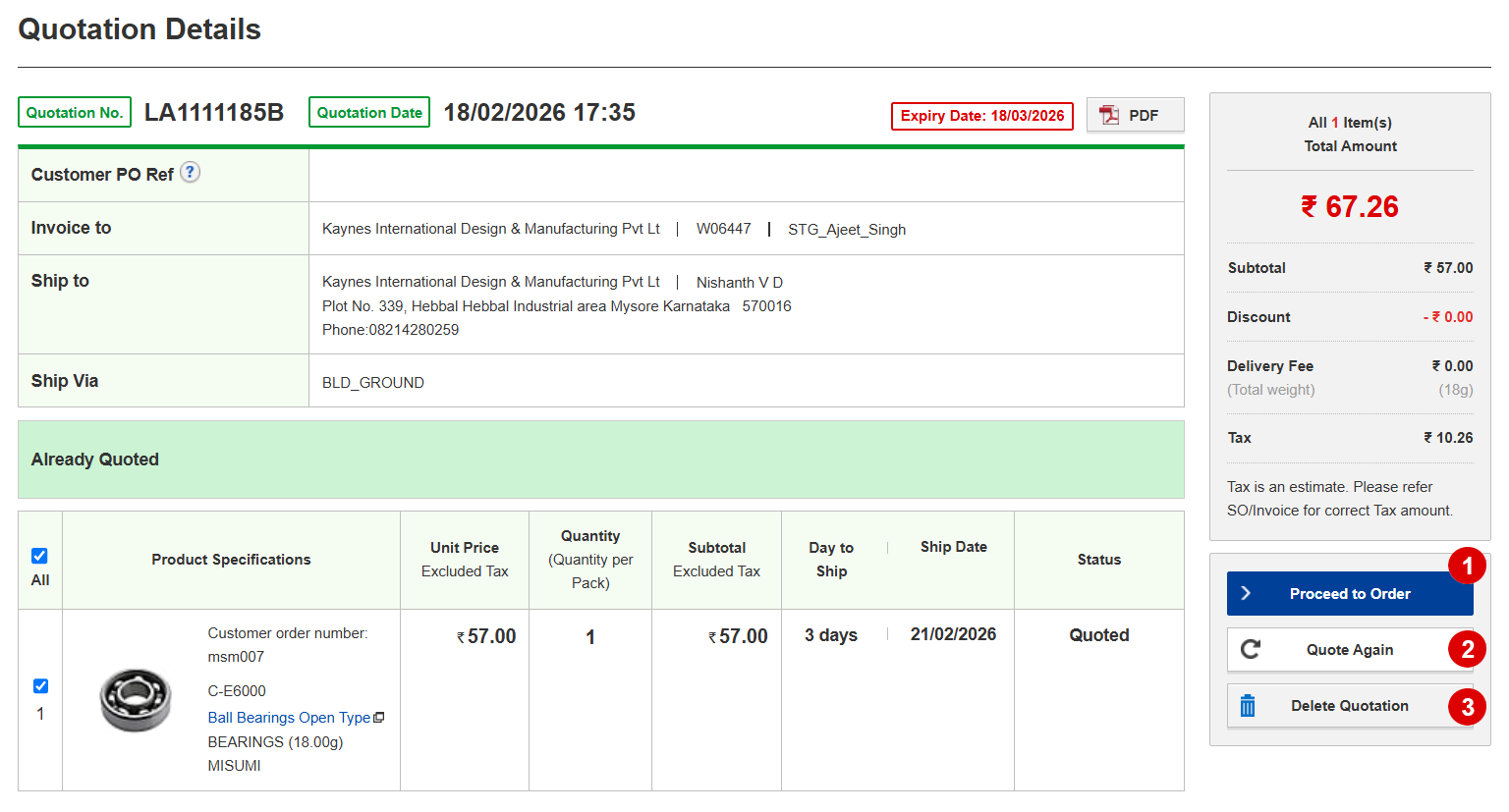
Quotation Details – Next Actions
- 1 If everything looks correct, click Proceed to Order.
- 2 If you want to make any changes, click Quote Again to update the quotation.
- 3 If you want to remove the quotation, click Delete Quotation.